

Currently, CAZVIP APP is not available in Google Playstore. You may download the APP directly from our website. Click here to learn more.
CAZVIP APP is FREE for all CAZVIP customers. Data charges may apply and your mobile service provider may charge you for using their data services to access the Internet.
Our APP is now available on Android. Follow these simple steps to download and install APP on your smartphone.
Step 1: There are three ways to download App
click the ‘App’ button at the top right corner of the homepage.
click on the Android iconat the bottom of the homepage.
click on the link to download.
Step 2: Tap “Android Download” when prompted.
Step 3: After successfully downloading the file, open the file and proceed to the installation phase. It only takes a few seconds to install the APP.
Yes, it’s as simple as that! You can now easily place bets on without any hassle!
Yes, you can place bets using your mobile browser or download our APP to place bets on the go!
If you want to delete or remove any cookies already stored on your computer that keep a track of your browsing patterns, you can do so by deleting your existing cookies. The process will vary depending on which browser you use. Our quick help guides show the steps for removing cookies for various browsers. You should also visit the official web pages for the browser for instructions.
Google Chrome (PC web):
Step 1:
Click on the three-dots icon at the top right of your browser and select “More tools” from the menu. Click “Clear browsing data”.
or Press CTRL + SHIFT + DELETE at the same time and a new window will appear, allowing you to delete your browser history. (this step is applicable to all browsers)
Step 2: Choose “Basic/Advanced” and then select the time frame for which you would like to delete your cookies. If you want to delete all cookies, select “All time”.
Step 3: Check the boxes next to “Cookies and other site data” and “Cached images and files”.
Step 4: Double check your selections to make sure that other items you want to keep are not selected, and then hit “Clear data” to apply your settings”.
Google Chrome (Mobile site):
Step 1: Click on the three-dots icon at the top right of your browser and select “History” from the menu.
Step 2: Click “Clear browsing data”.
Step 3: Choose “Basic/Advanced” and then select the time frame for which you would like to delete your cookies. If you want to delete all cookies, select “All time”.
Step 4: Check the boxes next to “Cookies and other site data” and “Cached images and files”.
Step 5: Double check your selections to make sure that other items you want to keep are not selected, and then hit “Clear data” to apply your settings”.
Mozilla Firefox:
Step 1:
Click on the three-dots icon at the top right of your browser and select “Settings” from the menu. Go to “Privacy & Security” and scroll down to “History”.
or Press CTRL + SHIFT + DELETE at the same time and a new window will appear, allowing you to delete your browser history. (this step is applicable to all browsers)
Step 2: Click “Clear History” and then select the time frame for which you would like to delete your cookies. If you want to delete all cookies, select “Everything”.
Step 3: Check the boxes next to “Cookies” and “Cache”.
Step 4: Double check your selections to make sure that other items you want to keep are not selected, and then hit “OK” to apply your settings”.
Check out the video below!
– If your win amount is less than your bet, effective turnover follows your win amount.
Example: Bet 100, win 80 → effective turnover = 80
– If your win amount is more than your bet, effective turnover follows your bet amount.
Example: Bet 100, win 130 → effective turnover = 100
– If your loss amount is less than your bet, effective turnover follows your loss amount.
Example: Bet 100, lose 40 → effective turnover = 40
– If your loss amount is more than your bet, effective turnover follows your bet amount.
Example: Bet 100, lose 150 → effective turnover = 100
– Draw results will count as 0 effective turnover.
– For slot games, Effective Turnover is defined as the total amount of your real money bets.
Yes. You must register your account with your legal name and identity, which must be consistent with your bank account(s), or other payment accounts used to deposit or receive funds in your account.
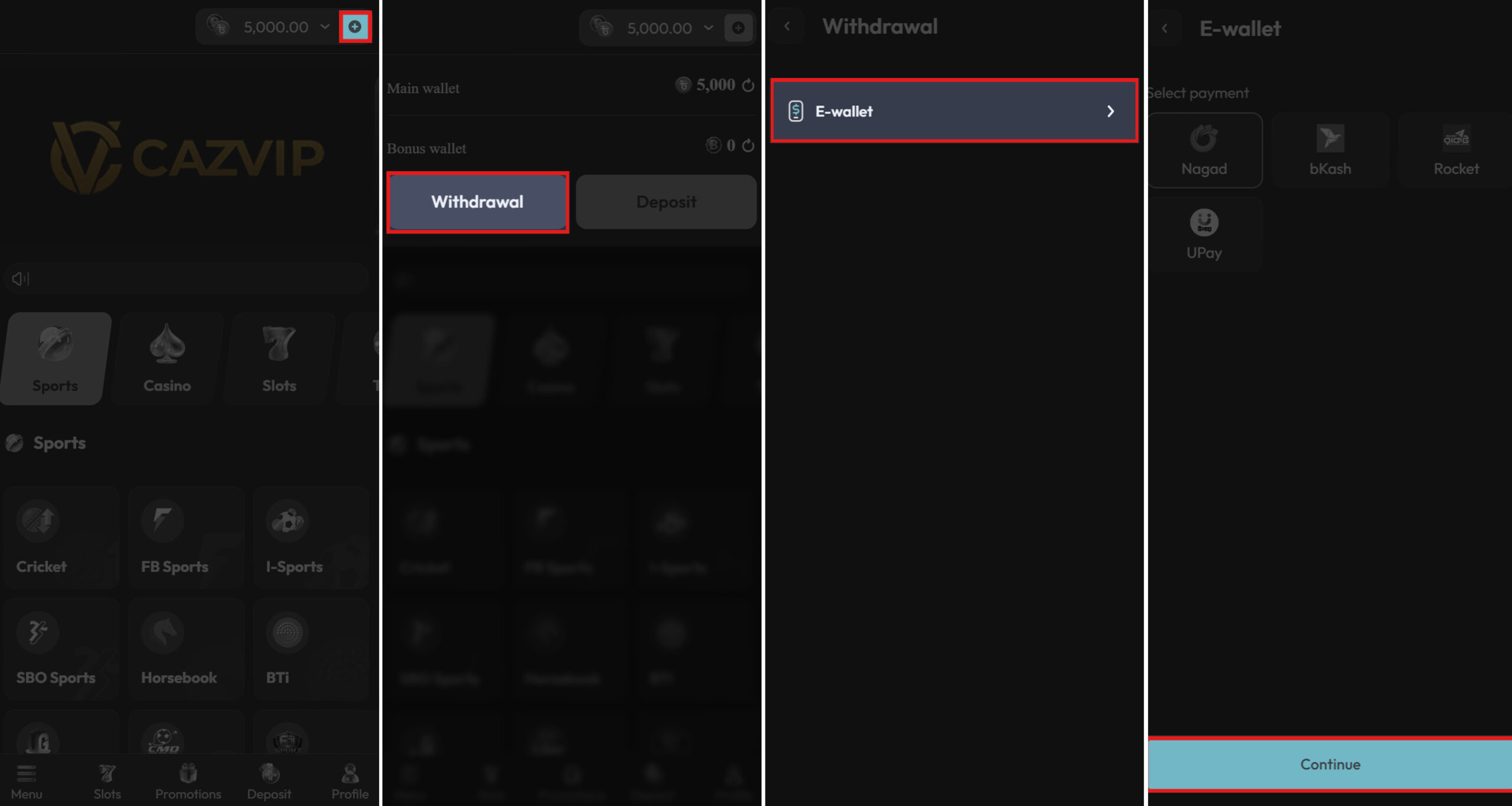
Check out this simple step-by-step guide to make your withdrawal.
Step 1: Login to your account and click “+”.
Step 2: Select “Withdrawal”.
Step 3: Please complete your account verification before you proceed with the withdrawal request.
Step 4: Select “E-wallet” and choose your preferred e-wallet payment option.
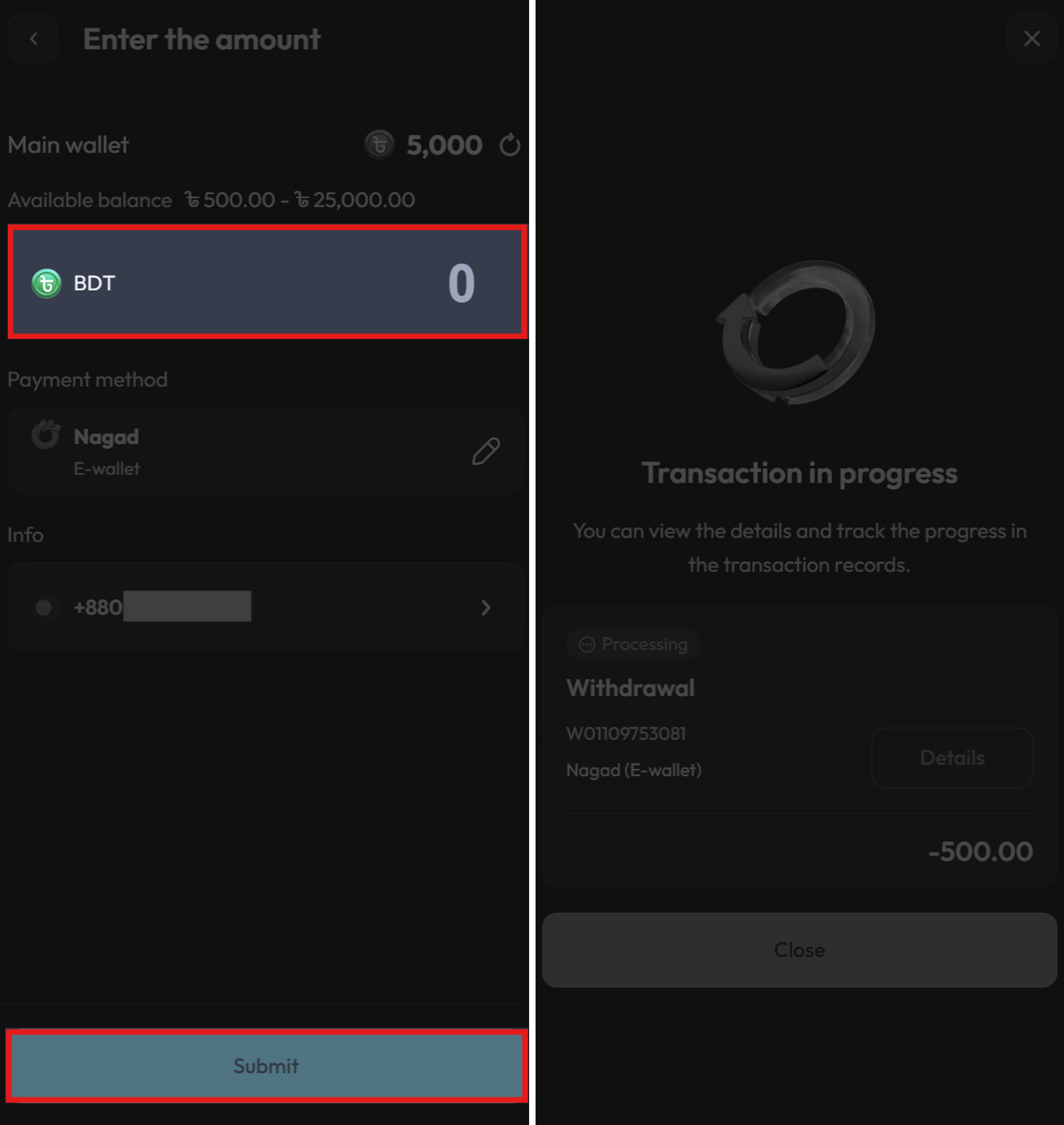
Step 5: Fill in your withdrawal amount.
Step 6: Click on the “Submit” button and you will receive a notification that your withdrawal has been received and is being processed.
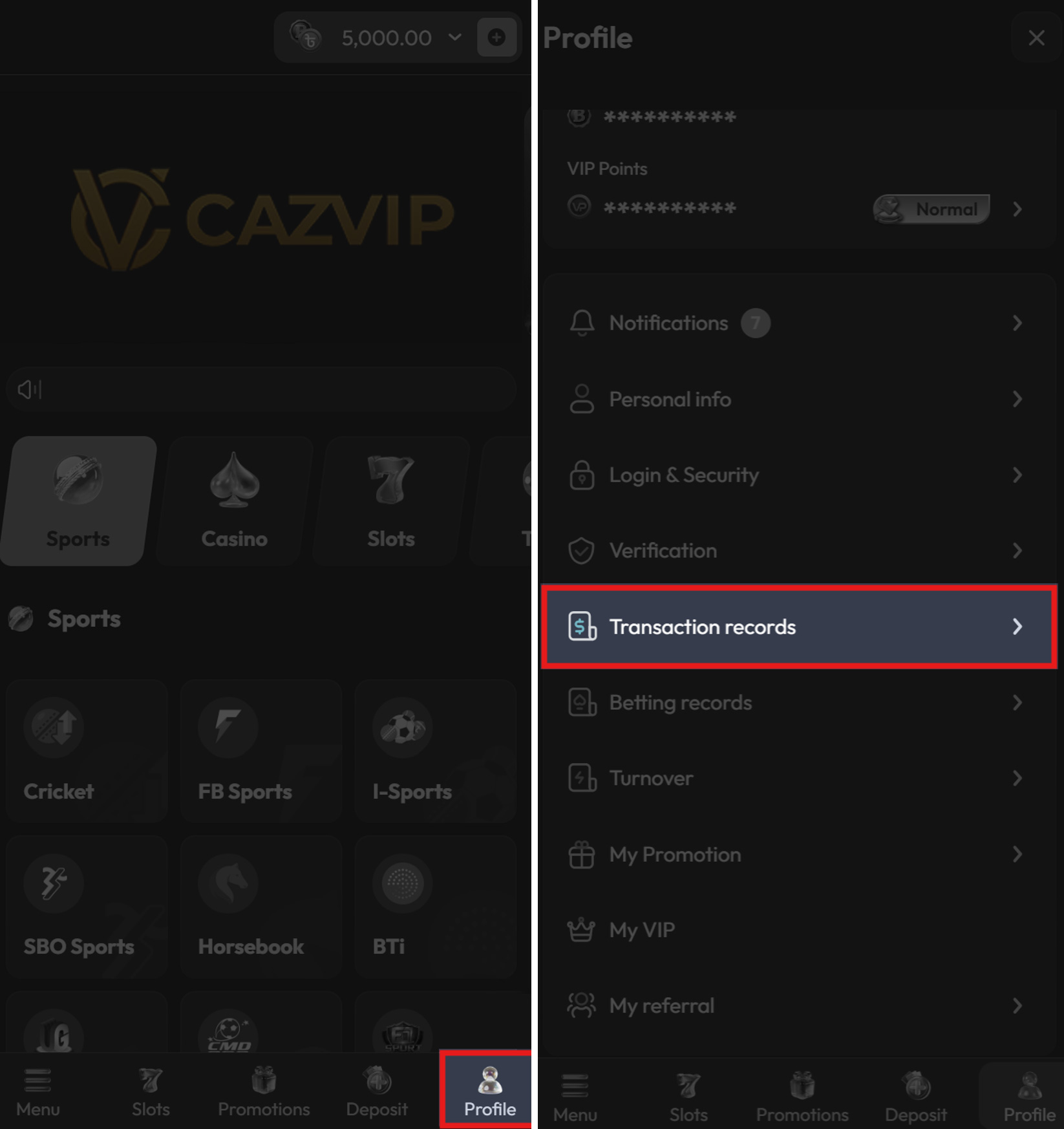
To check the status of the withdrawal, click on “Profile” > “Transaction Records”.
Note:
- Please ensure that all your information is accurate, CAZVIP will not be liable for any missing funds due to incorrect information.
- Please complete your account verification before making a withdrawal.
Check out this simple step-by-step guide to make your withdrawal.
Step 1: Login to your account and click “+”.
Step 2: Select “Withdrawal”.
Step 3: Please complete your account verification before you proceed with the withdrawal request.
Step 4: Select “E-wallet” and choose your preferred e-wallet payment option.
Step 5: Fill in your withdrawal amount.
Step 6: Click on the “Submit” button and you will receive a notification that your withdrawal has been received and is being processed.
To check the status of the withdrawal, click on “Profile” > “Transaction Records”.
Note:
- Please ensure that all your information is accurate, CAZVIP will not be liable for any missing funds due to incorrect information.
- Please complete your account verification before making a withdrawal.